Why Your Video Calls Get Choppy (And How to Fix It)
Ever notice how your video call turns into a choppy, pixelated mess the moment someone else on your network starts a big download? It’s not your internet being “too slow” - it’s a queuing problem.
What’s Actually Happening
When data leaves your network, it has to squeeze through a bottleneck: your connection to your ISP. When there’s more data than can fit through at once, it forms a queue - and that queue lives in your modem.
Here’s the catch: your modem is dumb. It uses a simple first-come, first-served line. It doesn’t know or care what kind of traffic it’s handling.
Someone starts a download while you're on a call:
  [download][download][download][voice][download][download][voice][download]...  <--------------------------------------------------------------------------->                         all waiting in one line                          EXIT
Your voice packets are time-sensitive. They need to arrive NOW.But they're stuck behind bulk data that couldn't care less about timing.
A voice or video packet that arrives 200 milliseconds late is useless. A download chunk that arrives 200 milliseconds late? Nobody notices.
But your modem treats them exactly the same.
Result: choppy audio, frozen video, frustrating lag.
How Wirebump Fixes This
Wirebump sits between your router and your modem. It deliberately paces your traffic to slightly under your actual link speed. This might sound counterintuitive, but here’s why it works:
By keeping the modem’s queue nearly empty, the bottleneck moves to Wirebump - where smart traffic shaping can actually manage it.
Instead of one dumb queue, Wirebump maintains separate queues for different types of traffic and rotates between them fairly:
Bulk downloads: [chunk][chunk][chunk][chunk][chunk]... Voice/video: [packet][packet] <-- gets through immediately Web browsing: [request][page] Everything else: [data][data] | [smart scheduler] -> EXIT -> Modem (nearly empty)Your voice packets no longer wait behind bulk transfers. They get their own fast lane.
Downloads still happen at full speed - they can’t hog the exit and make everyone else wait.
The Setup
Normal:  Your device -> Router -> Modem    <- queue builds here (you can't control it)                             |                            ISP
With Wirebump:  Your device -> Router -> Wirebump -> Modem -> ISP                              |           |                        smart queues   stays empty
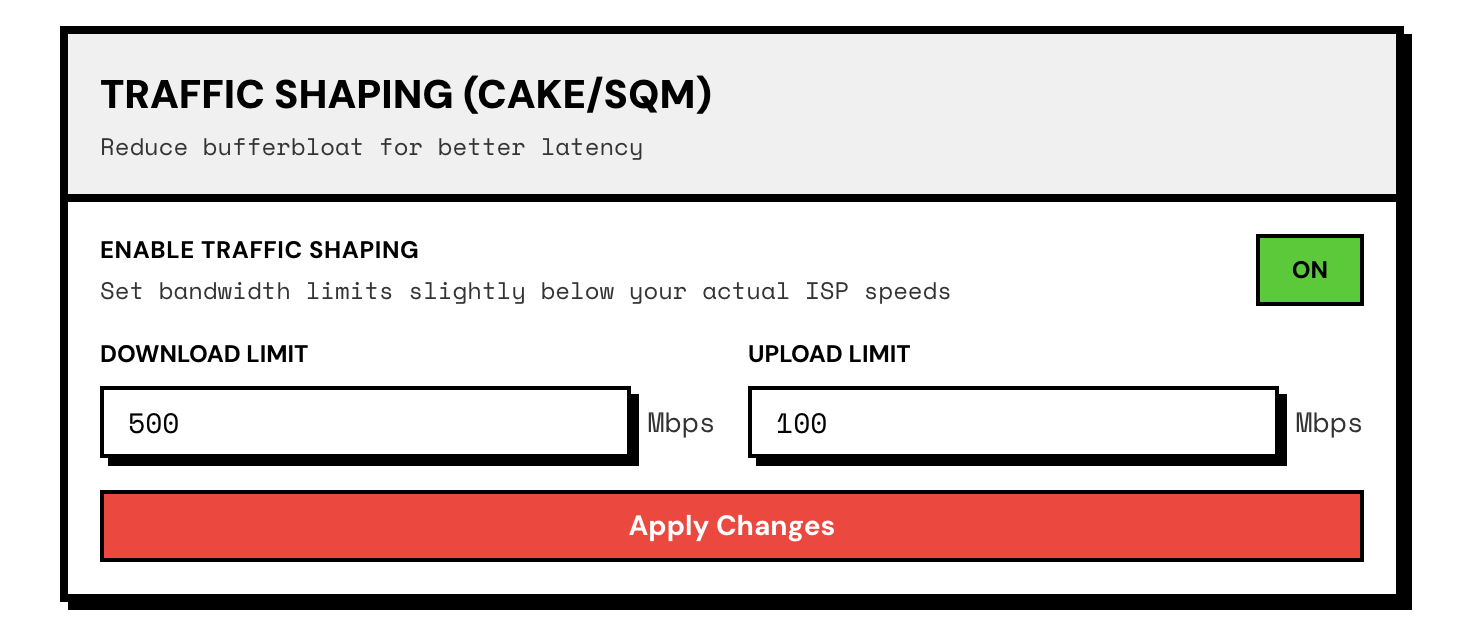
Wirebump uses CAKE (Common Applications Kept Enhanced), a well-tested SQM (Smart Queue Management) algorithm. You set your download and upload speeds, and Wirebump handles the rest.
Finding Your Speeds
To configure traffic shaping, you need to know your connection speeds:
- Run a speed test with your VPN disabled. fast.com or speedtest.net work fine.
- Or use your ISP’s advertised speeds. What you’re paying for is usually close enough.
- Set your shaping values slightly below measured speeds. This margin ensures the queue stays on Wirebump, not your modem.
For accurate results, test over a wired connection. WiFi introduces its own latency and jitter, which are the exact problems traffic shaping solves. If you must test over WiFi, use the strongest signal possible.
What You Get
- Smooth video calls, even when someone’s downloading an LLM or uploading backups
- Snappy web browsing, even on a busy network
- Fair sharing between everyone on the network
Your internet speed stays the same. Wirebump makes sure time-sensitive traffic doesn’t get stuck behind traffic that can wait.
Next Steps
- VPN Topologies - Learn how Wirebump chains multiple VPN providers for privacy
Test on a Live USB first. Nothing permanent until you install. Installation guide